iOS MAP HELP
Opening maps on iPhone & iPad
Map blurry? Safari struggling to open it? Follow these 11 steps to download the map and save the full-resolution image to Photos.
For iOS, I recommend the JPG version of a map — preferably JPG50% when one is available.
STEP 01 OF 11
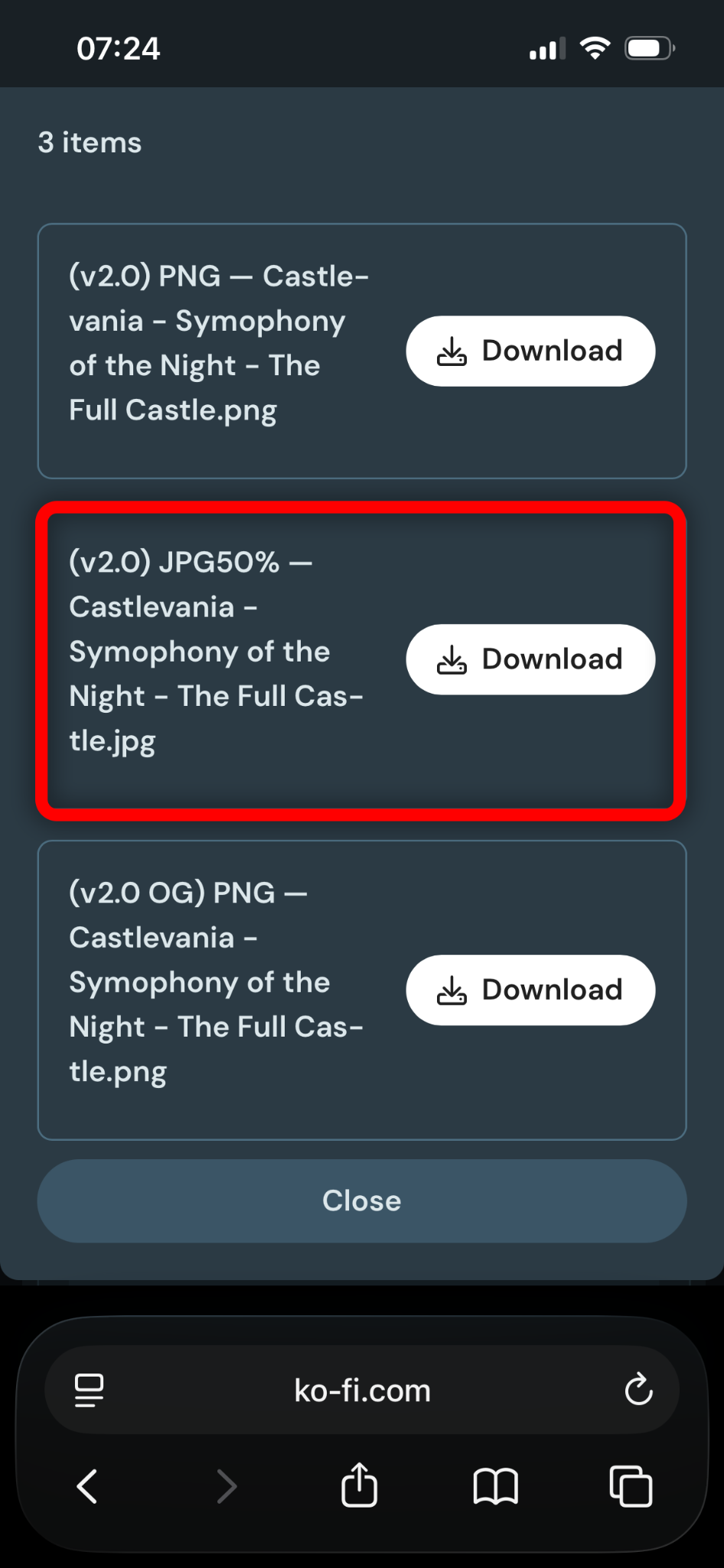
Download the JPG
With your Ko-fi receipt open, tap VIEW CONTENT. Find the map you want and tap its download button.
Try the JPG first — preferably JPG50% if the map has one. iOS is notoriously bad at opening very large PNGs.
STEP 02 OF 11
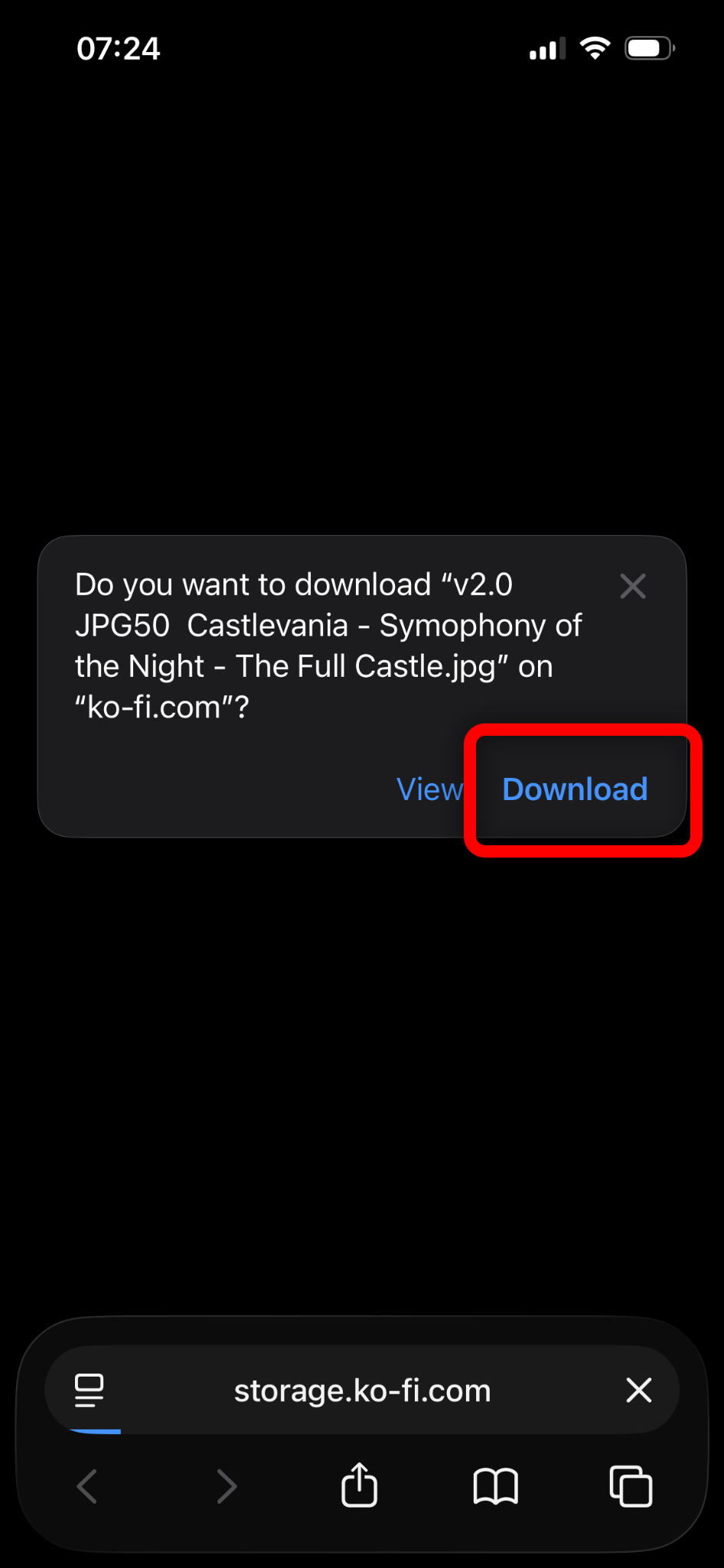
Choose Download
iOS will show a full-screen prompt. Tap DOWNLOAD.
Trying to view a map of this size directly in the browser may crash Safari.
STEP 03 OF 11
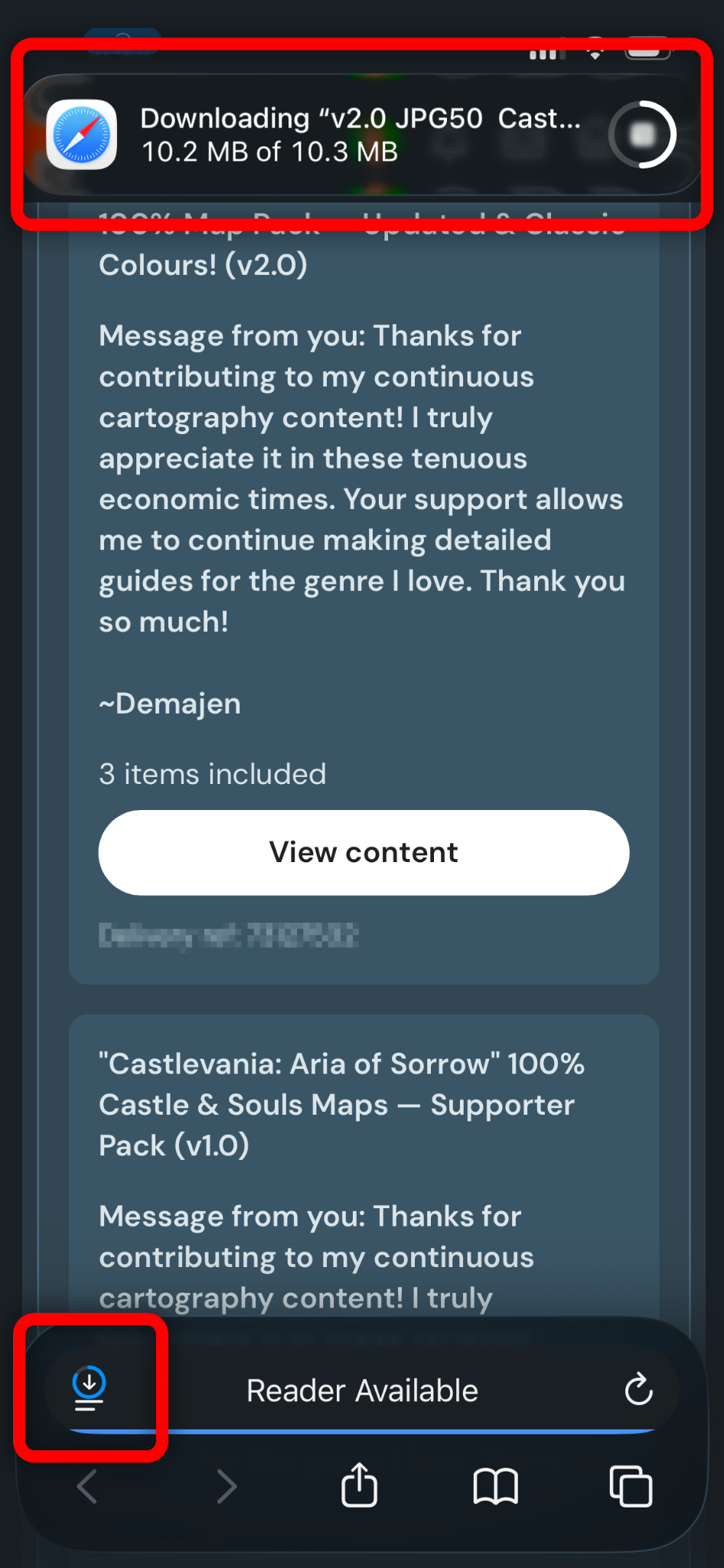
Wait for it to download
A progress notification appears at the top of the screen. You will also see a blue progress ring in Safari's address bar.
These maps can be very large. Let the download finish before continuing.
STEP 04 OF 11
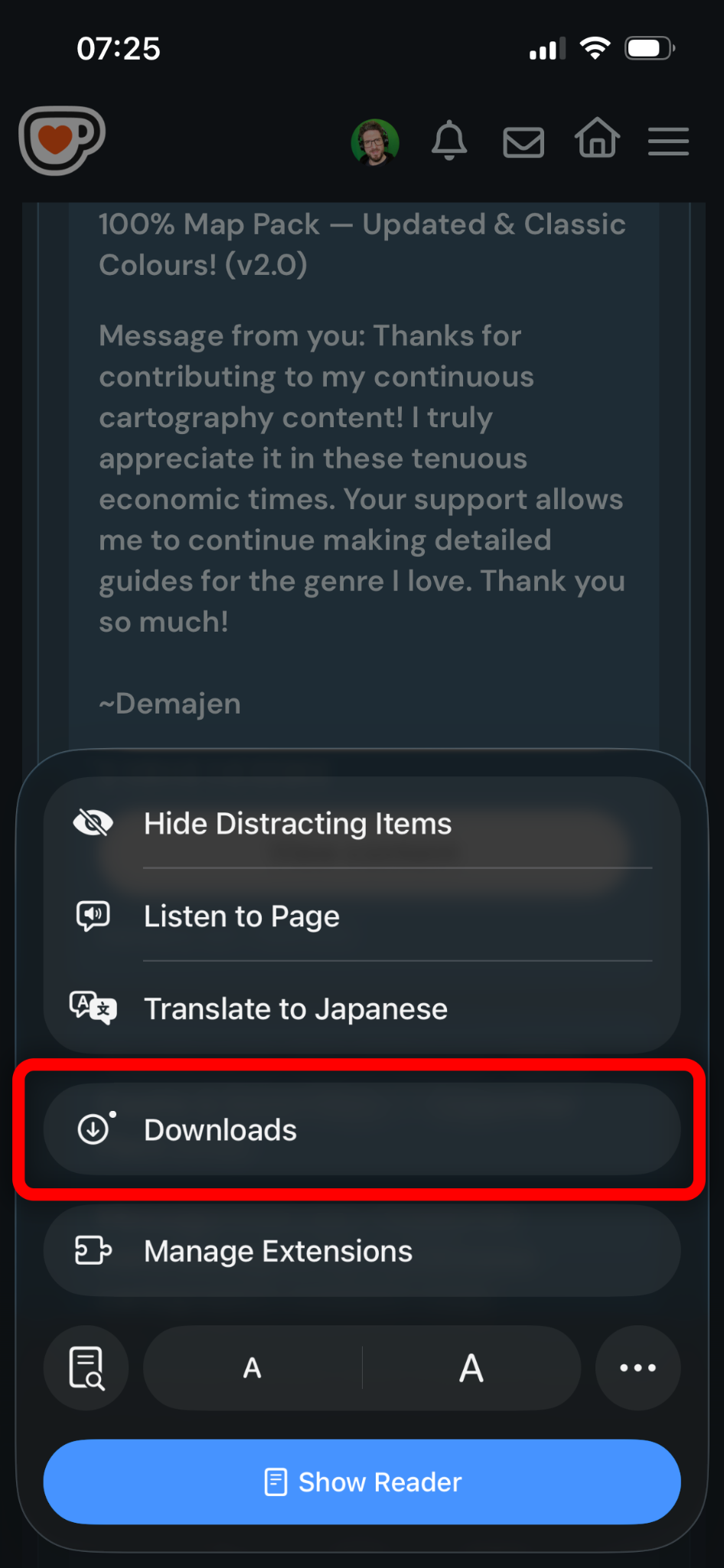
Open Downloads
When the file has finished, tap the blue download icon in the bottom-left of Safari.
From the menu that appears, tap DOWNLOADS.
STEP 05 OF 11
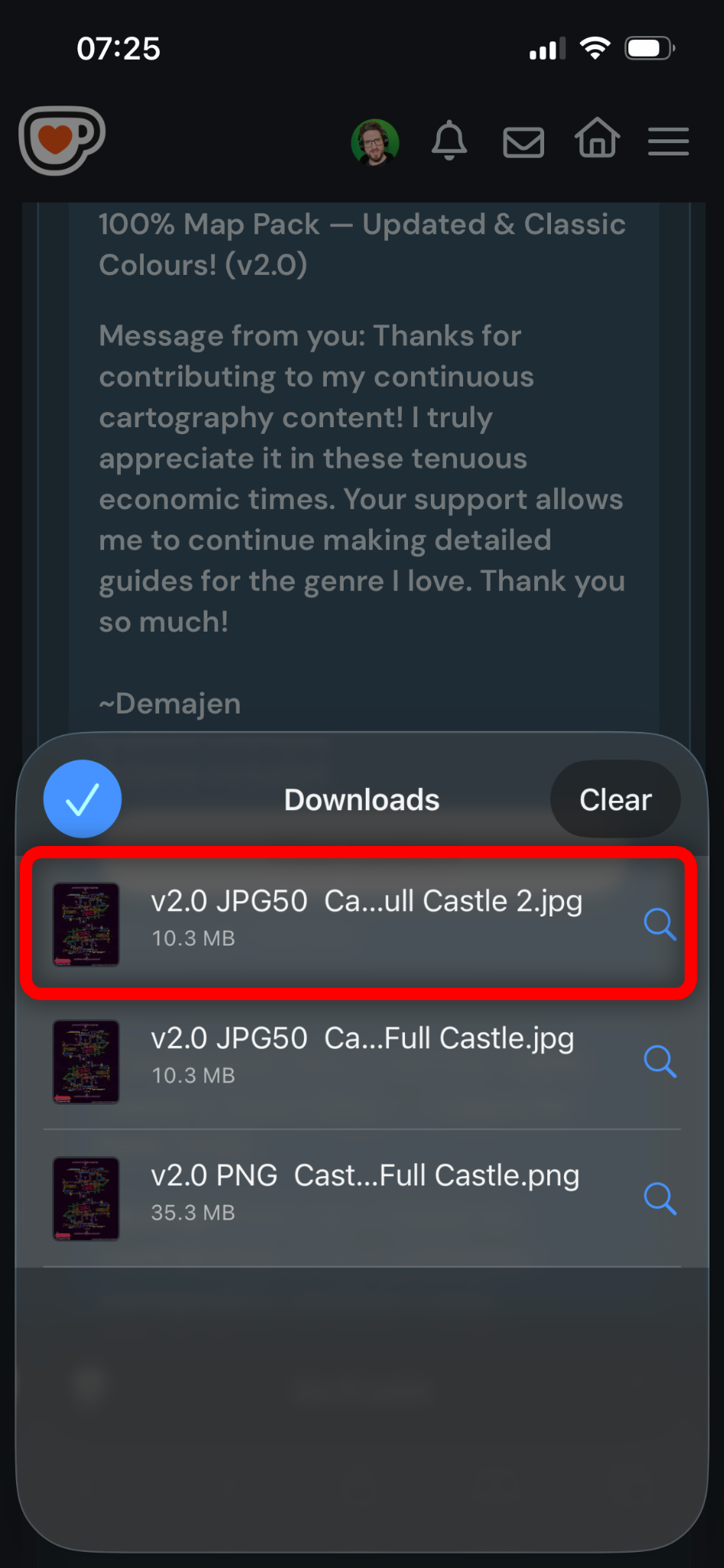
Select your map
The recent downloads tray will open. Tap the map file you have just downloaded.
STEP 06 OF 11
The preview will open
Safari now shows a preview of the downloaded map.
The browser preview is not where you want to use the map.

STEP 07 OF 11
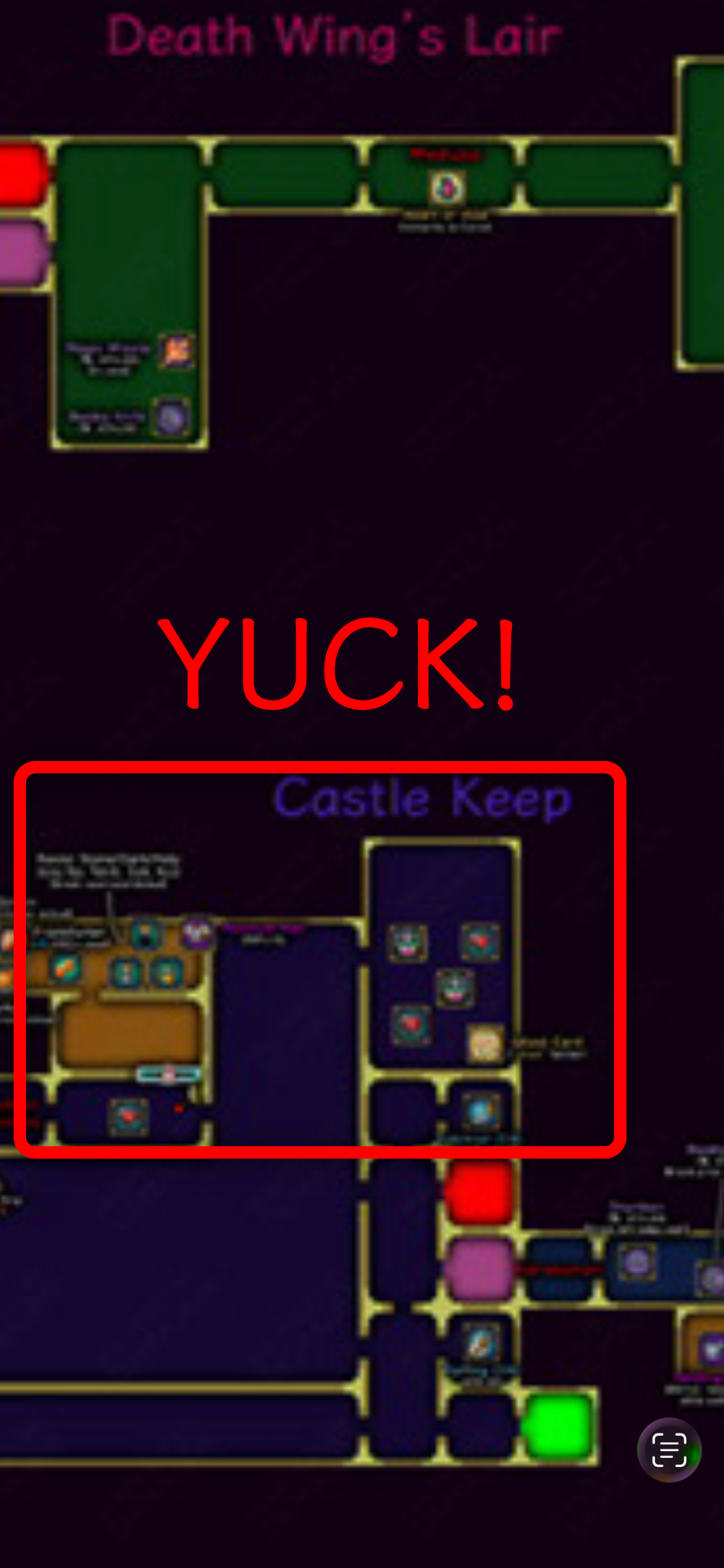
Blurry when you zoom?
This is the problem we're fixing. If you try to zoom into the browser preview, the map will probably look extremely blurry and may be impossible to read.
Safari struggles to keep images this large in memory and may even crash when you zoom.
STEP 08 OF 11
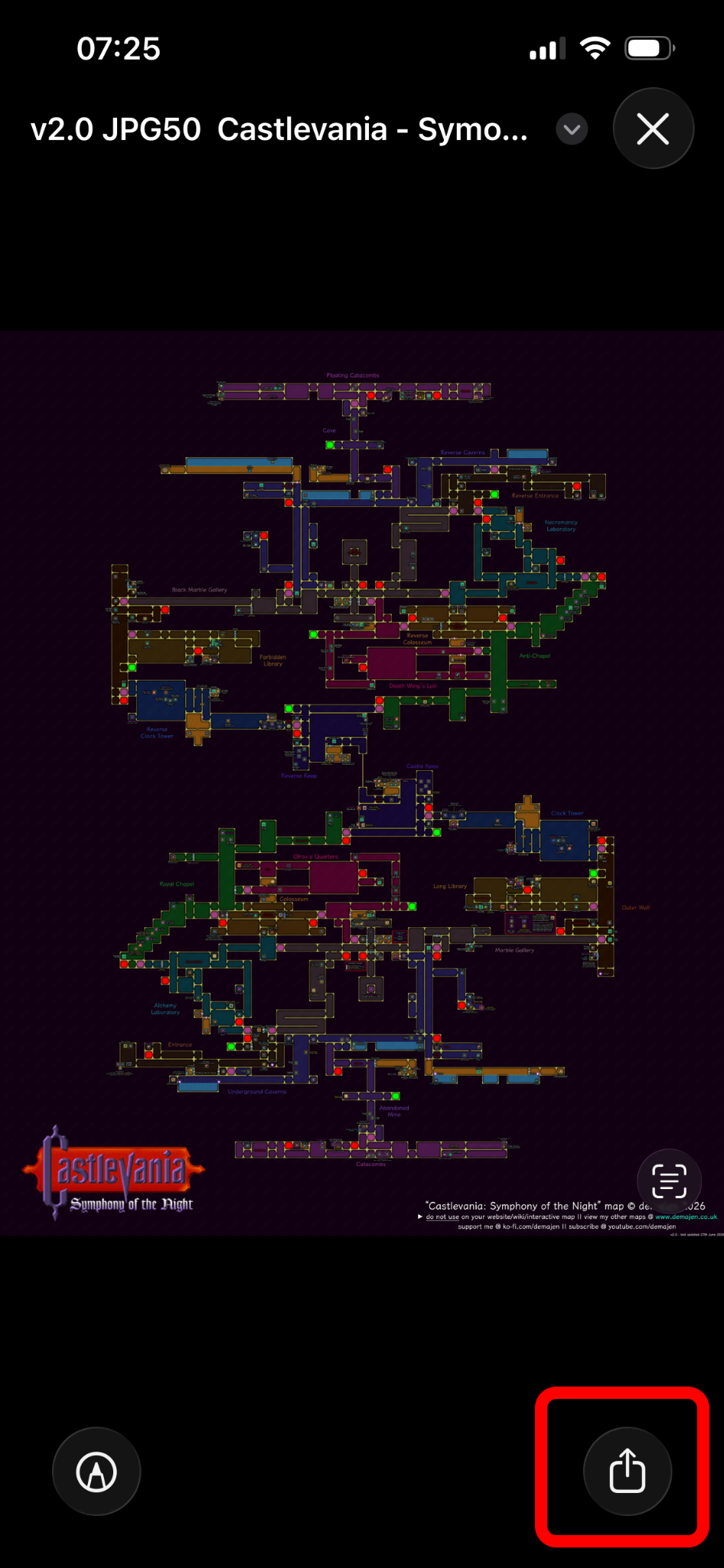
Open the image controls
Instead of zooming, tap the map once to reveal the image controls.
Tap the Share icon in the bottom-right.
STEP 09 OF 11
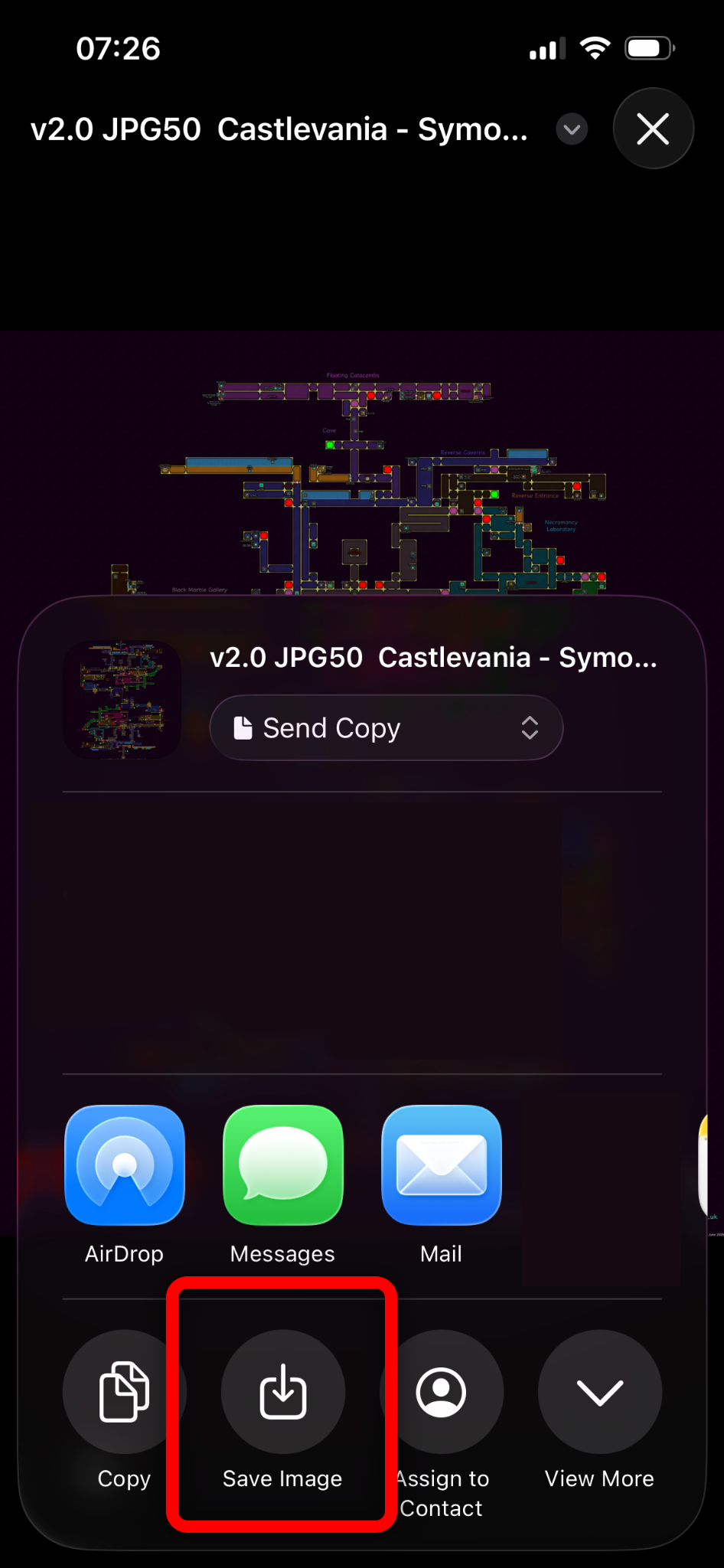
Save the image
From the full control panel, tap SAVE IMAGE.
The full-resolution map is now saved to your Photos app rather than being viewed through Safari.
STEP 10 OF 11
Open Photos
Open the Photos app. Your map should appear near the bottom.
Try organising Photos by Recent if the map doesn't appear where you expect.
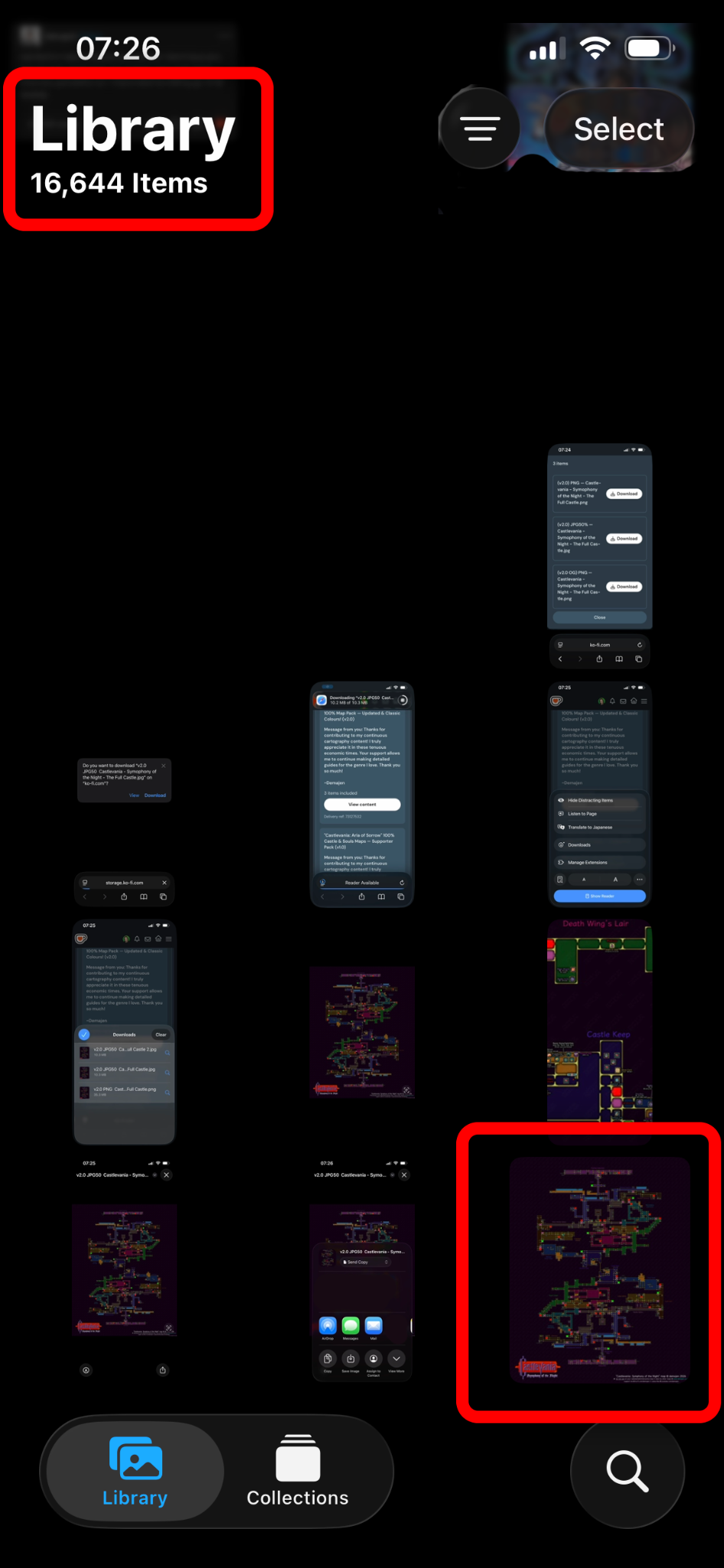
STEP 11 OF 11
Zoom away!
Open the map in Photos and pinch to zoom as you would with any other image.
Very large maps may initially appear blurry while Photos loads the full-resolution image into memory, especially on older devices. Wait a few moments before trying to zoom — once loaded, the map should remain clear and responsive.
PNG versions of the maps are considerably more demanding than JPGs. They can open in Photos, but large PNG maps may take significantly longer to load and can struggle on older devices. JPG or JPG50% is strongly recommended for iPhone and iPad.
The text should now remain crisp and clear as you zoom into the full-resolution map.
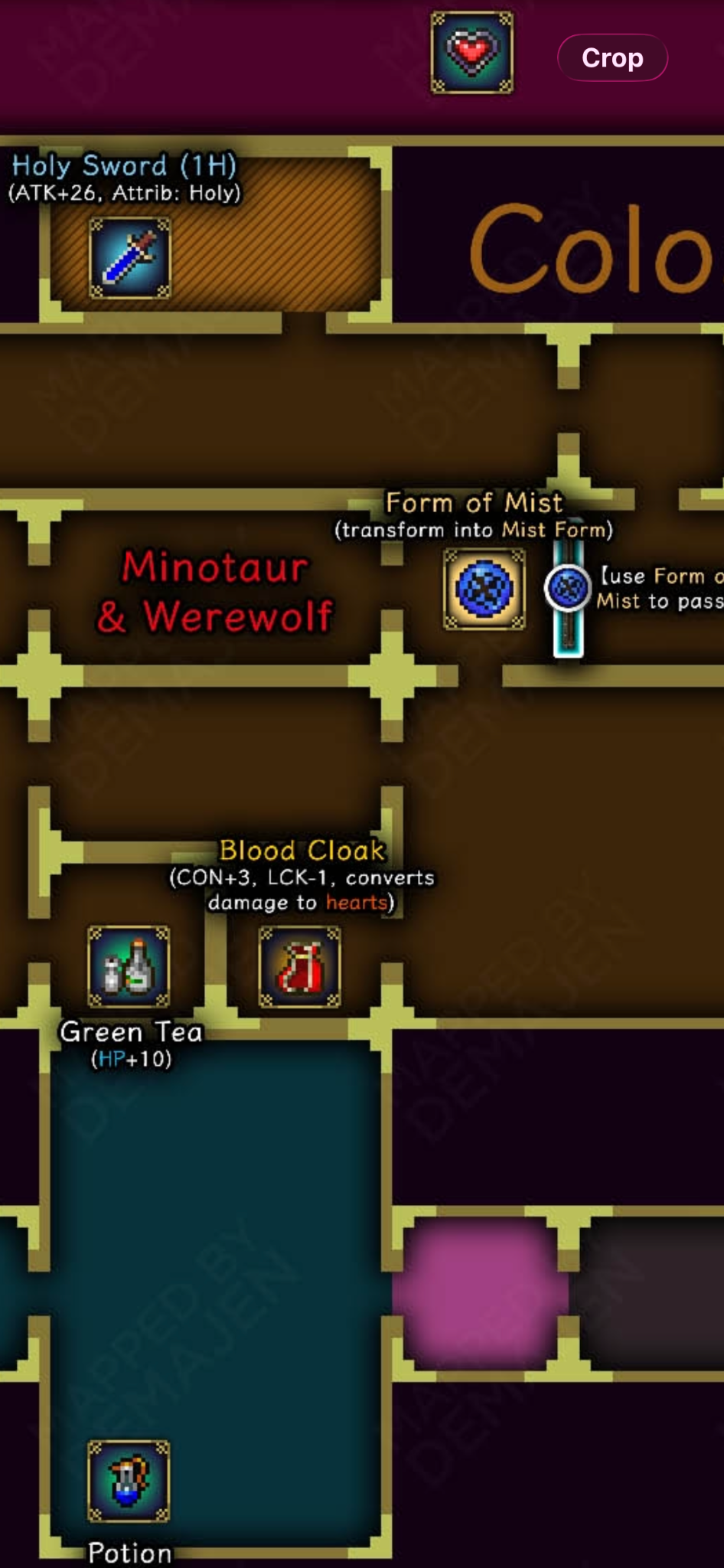
THAT'S IT
Your map is ready.
Once a map is saved to Photos, open it from there whenever you need it rather than returning to the Safari preview.
Run through the steps again ↑